A Tesla app location problem can stall a roadside request before help is arranged. If the app can’t locate the car, send your position another way and give the operator enough detail to find you.
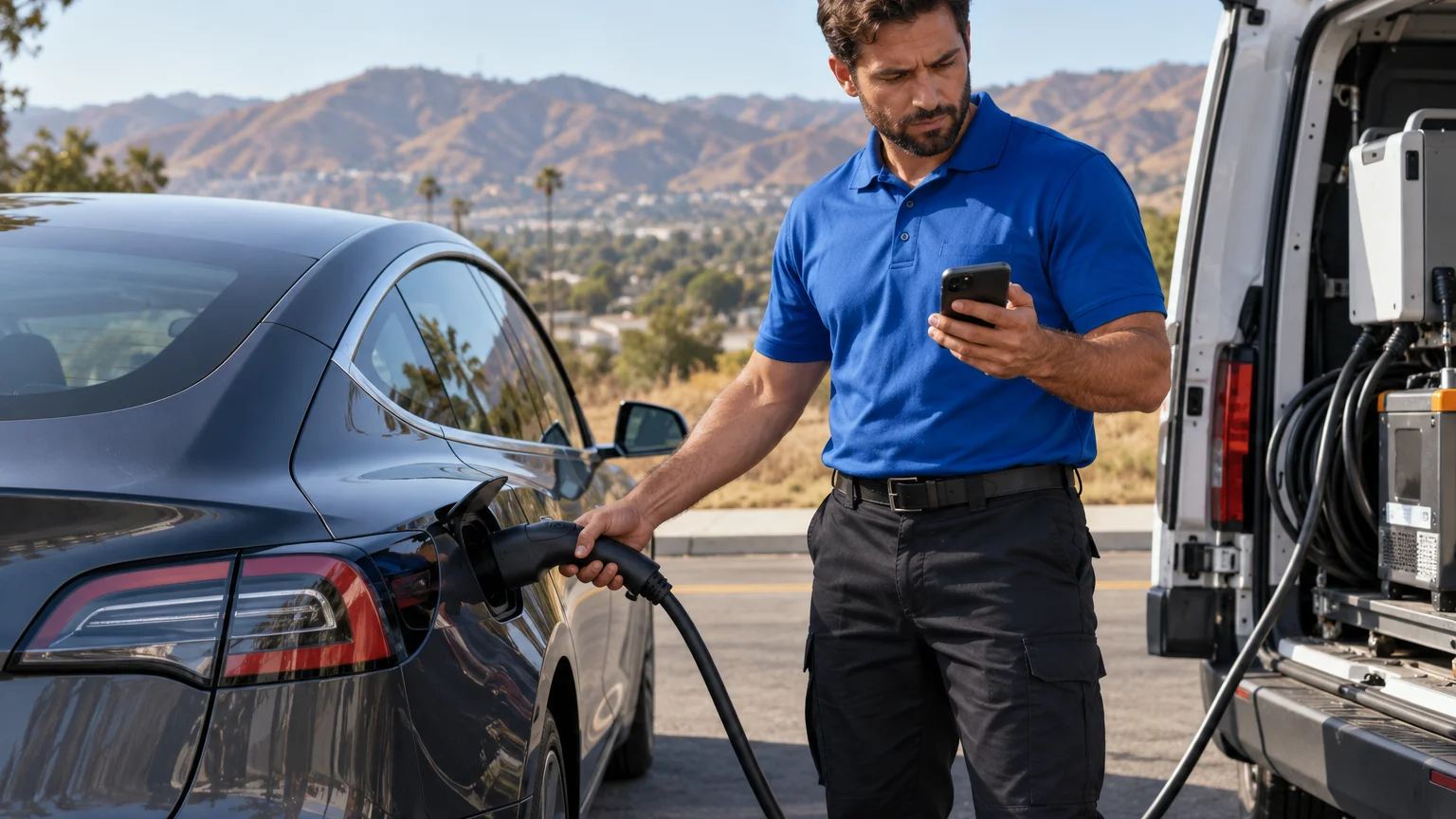
Location trouble can block the normal roadside request
A location shown inside an app isn’t always useful at the roadside. The car may appear somewhere else, show an old position, or provide no useful position at all. Don’t assume repeated refreshes will fix the connection.
The Tesla app’s current roadside location process couldn’t be confirmed from the approved source material for this page. Follow the live prompts shown in your app, but treat them as one contact route. If the location is wrong, tell the person handling the request immediately.
Start with three plain facts:
- The location shown in the app isn’t where the car sits.
- You can provide another map pin or written location.
- You need confirmation that the replacement location was received.
That last point matters across the Inland Empire. A pin near I-15 in Corona isn’t enough if the car is actually on the express lanes, a frontage road, or a nearby parking lot. The same problem appears around the I-10 and I-215 interchange in San Bernardino.
Don’t wait for the Tesla app to identify the car before gathering better information. Open another map only if you can do so safely. Note the nearest exit, cross street, business, or visible sign.
The related guide on choosing the Tesla roadside app or phone route covers the contact-channel decision. This page focuses on the location details needed after the app fails to place the car.
Confirm the phone and vehicle are showing the same car
Before sharing a location, confirm that the screen refers to the stranded Tesla. This matters when a household has more than one vehicle or when another driver normally uses the account.
Compare the vehicle name or description on the screen with the car in front of you. Use visible details you already know, such as the model, color, and license plate. Don’t send account credentials, passwords, or private access codes to a roadside operator.
Then separate two locations in your mind:
- Where the Tesla app says the car is
- Where you and the car are physically sitting
State both if they differ. For example: “The app shows Riverside, but the car is in a parking lot in Moreno Valley.” That tells the recipient not to route help using the app’s location alone.
If the phone belongs to a passenger, confirm that person is beside the stranded vehicle. A phone’s position can describe the person carrying it, not necessarily the Tesla. This is especially relevant when someone walks toward a store, exit, or safer waiting area.
Don’t claim the app is fixed just because its map changes. Ask the roadside contact to repeat the destination they received. If they can’t confirm it, provide the location again in a different form.
For a broader look at Tesla assistance and local alternatives, read the guide to Tesla roadside assistance coverage in the Inland Empire. Your own Tesla documents and live app screen control any Tesla-specific benefit or request process.
Share a location pin outside the Tesla app
Use another map on your phone if it can show your current position. Place the pin where the vehicle sits, not where you plan to wait. Then copy or share that location through the channel accepted by the roadside contact.
Check the map before sending it. A pin can land across a divided freeway, on the wrong side of a shopping center, or behind a building. Satellite imagery may help you compare the pin with parking rows, driveways, and nearby structures.
Written details should accompany the pin. Include:
- The city or unincorporated community
- The road, lot, or property name
- The nearest cross street or freeway exit
- Your direction of travel
- The side of the road or section of the lot
- A visible landmark near the vehicle
In Ontario, “near the airport” covers too much ground. Name the parking area shown on the airport’s current map, then add a row, sign, or nearby entrance if visible. At Ontario Mills, identify the side of the property and the closest marked entrance rather than sending the shopping center name alone.
Mountain locations need the same care. A pin near Lake Arrowhead or Big Bear Lake can appear close on a flat screen while sitting on a different road. Send the road name, travel direction, and nearest posted marker.
If another person sends the pin for you, have them read it back. The goal isn’t technical perfection. It’s a location description that a driver unfamiliar with your exact parking spot can follow.
Describe landmarks, routes, and travel direction
A useful roadside description works even when the map pin doesn’t. Start broad, then narrow the location.
Name the route and direction first. Follow that with the last exit passed, the next visible exit, and the side where the Tesla stopped. If you’re inside a lot, name the property and the closest entrance.
In the Inland Empire, similar place names can create mistakes. Big Bear Lake is an incorporated city, while Big Bear City is a separate unincorporated community. Calimesa is in Riverside County, while neighboring Yucaipa is in San Bernardino County. Say the full place name instead of assuming the map makes the distinction.
Travel direction is especially useful along long corridors. I-15 crosses Corona, Jurupa Valley, Rancho Cucamonga, the Cajon Pass, Hesperia, and Victorville. A message saying only “on I-15” leaves too much uncertainty. Add northbound or southbound, then name the nearest exit or visible sign.
The same rule applies on I-10 through Ontario, Fontana, Colton, Redlands, Beaumont, and Cabazon. In Riverside County, roadside patrol corridors include SR-91, I-15, SR-60, and I-215. Coverage and operating details can change, so confirm the current program through the responsible agency.
If the car is in a traffic lane, contact emergency services. Don’t stand between the Tesla and moving traffic to inspect a sign or improve a pin. Share the safest accurate description you can from your current position.
Repeat the final location in one sentence. Short, ordered details are easier to confirm than a long story about how the car reached that spot.
Tesla roadside and local operators need different details
Tesla’s current app fields and roadside intake requirements couldn’t be confirmed for this page. Check the live request screen and your vehicle documents for the information Tesla asks you to provide.
A local operator needs practical details for the specific job. Start with the vehicle location, Tesla model, visible condition, and the help you believe you need. Describe symptoms without diagnosing them.
“Battery reads empty and the screen still works” is more useful than “the battery is broken.” “Doors and screen don’t respond” describes the condition without deciding whether the main pack or low-voltage system caused it.
Tell the operator about access limits too. Mention a parking structure, locked gate, narrow driveway, steep shoulder, express lane, or property entrance. If the Tesla is blocking traffic or involved in a collision, say that before discussing charging.
Charge Pro IE is a referral service. We connect drivers with licensed, independent local operators. We don’t control Tesla software, locate vehicles through Tesla systems, operate a fleet, set the operator’s price, or promise an arrival time. The customer contracts with and pays the operator directly.
Our Tesla roadside rescue service can connect you with a local operator when Tesla’s request route doesn’t fit the situation. Compare the available routes in Tesla roadside help in the Inland Empire before choosing mobile charging, low-voltage help, or a tow.
Ask the operator what information they require. Confirm the destination pin and service type before ending the call.
What to do when the car also has no power
A Tesla that can’t communicate with the app may also have an apparent power problem. That combination doesn’t prove the main battery is empty. A fully unresponsive screen, app, locks, and charge-port door can indicate a low-voltage problem, but it isn’t a complete diagnosis.
Don’t force the charge-port door. Current Tesla Model 3 and Model Y manuals list several normal ways to open it, but the exact options depend on the vehicle’s available power and access. Use the owner documentation for the model and build in front of you.
Those manuals also distinguish the external hood-release terminals from the under-hood jump points. The external terminals release the hood latches. They don’t charge the low-voltage battery. Jump locations vary by model, build, and low-voltage system.
Tell the roadside contact what still responds:
- The center screen
- Interior or exterior lights
- Door locks
- The phone key
- The charge-port door
- Any warning displayed before shutdown
Also report the battery percentage last seen, if you know it. Don’t invent a number from memory. “Unknown” is better than a wrong estimate.
A powered screen showing an empty pack suggests a different request from a completely dark car. The first may need mobile charging or towing. The second may need low-voltage assessment before anyone can determine the next move.
Keep the location problem separate from the power problem. Send an outside pin first, then describe the car’s condition. That gives the operator two clear tasks: find the Tesla and identify the suitable roadside response.
When to call us
Call when the Tesla app can’t place the car and you need a mobile EV rescue operator. Share an outside map pin, your travel direction, and the vehicle’s visible symptoms.
Call us at (909) 250-2881 and we’ll connect you with a local EV rescue operator.